How to Optimize WordPress Site Speed for Better SEO Rankings

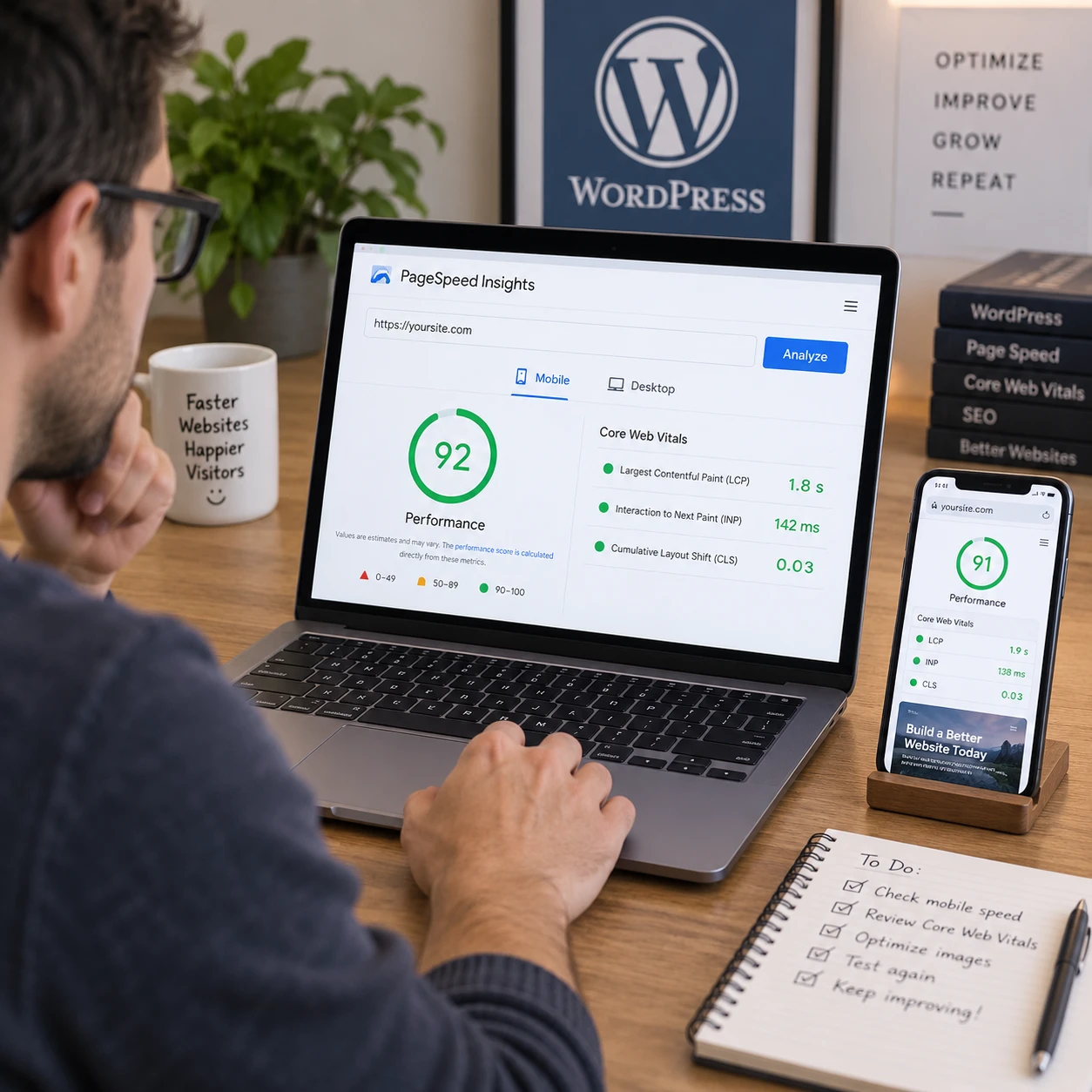
A slow WordPress site can frustrate visitors before they reach your content, products, or checkout. Improving page speed can make browsing easier and support your broader SEO strategy, especially on mobile. The work starts with measuring real problems, then making changes you can verify.
Why WordPress speed matters for SEO and visitors
WordPress speed affects how quickly visitors can use your site, and that experience can contribute to SEO performance. Faster pages can help people find information, browse products, and complete actions with less waiting. Speed is one part of a broader search strategy, not a promise of higher rankings by itself.
Google considers page experience alongside relevance and other signals. Core Web Vitals assess real-world loading, interactivity, and visual stability through metrics including Largest Contentful Paint (LCP), Interaction to Next Paint (INP), and Cumulative Layout Shift (CLS). A page that loads slowly or shifts while someone tries to tap a button may feel unreliable, even if its content is useful.
Speed also matters commercially. On a WooCommerce store, a delay affects more than the homepage: customers may need to load product galleries, filter results, add items to a cart, and complete checkout. Prioritize the pages and devices that matter most to your visitors rather than chasing a perfect score on every test.
Measure your site’s current performance
Measure WordPress page speed before changing settings so you can identify the largest problems and check whether a fix worked. Test key pages on mobile and desktop, review Core Web Vitals, and compare results after each meaningful change.
Start with a representative set of URLs: the homepage, a popular article, a category or landing page, and, for WooCommerce, a product page and checkout flow. Tools such as Google PageSpeed Insights combine lab diagnostics with field data when available. Field data reflects experiences from real users over time; lab tests provide a repeatable way to investigate a specific page and connection.
Record the URL, device type, test date, and main findings. Look for patterns such as an oversized hero image, slow server response, render-blocking scripts, or layout shifts. Do not treat a single score as a full diagnosis: a test score can vary, and a technically improved score does not always mean visitors experience a meaningful improvement.
Check mobile performance carefully. A page may feel quick on office Wi-Fi but struggle on a slower connection or a less powerful phone. Review the actual page, too: confirm that menus, forms, buttons, and product images remain usable.
Choose reliable hosting and a lightweight setup
Reliable hosting and a lean WordPress setup give every other speed improvement a stronger foundation. The server handles requests before the browser can display a page, while themes and plugins determine how much work WordPress must do.
Choose hosting that suits your traffic and site needs, with current PHP support, adequate resources, and a clear approach to backups and security. Shared hosting may be economical for a small site, but crowded servers can create slow or inconsistent response times. Managed WordPress hosting can simplify maintenance and caching, though it often costs more and may limit server-level customization. If server response remains slow after you reduce page weight, ask your host to investigate resource limits and database or server load.
Theme choice matters as well. A theme packed with sliders, animation, and page-builder features may add scripts and styles to pages that do not need them. A lightweight theme can reduce that overhead, but switching themes may require layout work and testing. Preview any change on a staging site before publishing.
Review plugins by function, not simply by count. Several well-built plugins can run efficiently, while one plugin that loads heavy scripts site-wide can be costly. Deactivate and remove tools you no longer use, and check whether essential plugins offer settings to limit features on pages where they are unnecessary.
Optimize images, scripts, and page delivery
Reduce the amount of data and code each page needs to load, especially above the fold. Image optimization, careful script management, and a content delivery network (CDN) can improve delivery, but each change should be checked for visual or functional side effects.
Resize images to the dimensions they are displayed at, compress them, and use modern formats such as WebP or AVIF when your workflow supports them. Avoid uploading a full-resolution camera image for a small product thumbnail. WordPress generates several image sizes, but selecting the appropriate dimensions in the editor or theme still matters.
Use lazy loading for images and embeds below the initial viewport so they load as visitors scroll. Do not lazy-load the main image that is immediately visible; delaying it can make the page appear slower. For scripts, remove features you do not use and defer nonessential JavaScript where safe. Combining or minifying files is not automatically beneficial on every hosting setup, so measure the result rather than enabling every optimization toggle at once.
A CDN serves eligible files from servers closer to visitors, which can help when your audience is spread across regions. It may also add configuration work, and it will not fix an overloaded origin server or excessive page code. Test caching rules and page behavior after connecting a CDN, particularly on pages with personalized or changing content.
Configure caching and keep WordPress maintained
Caching stores reusable page or file data so WordPress does less work for repeat visits. Configure a caching approach that fits your host and site, then keep WordPress, themes, and plugins updated to maintain performance and compatibility.
Page caching can serve a saved version of public pages instead of building each response from scratch. Browser caching encourages visitors’ browsers to reuse files such as logos and stylesheets. Some hosting providers include caching at the server level; adding another cache plugin without checking can create conflicts or make troubleshooting harder.
After configuring caching, clear the cache and test the site in a private browser window. Check that recent edits appear and that menus, forms, and logged-in areas behave correctly. Cache settings that work for a blog may need exclusions for account pages, carts, or checkout.
Keep WordPress core, themes, and plugins current, but update with care: make a backup, review release notes when a change is substantial, and test important functions afterward. Remove unused plugins and theme features. The aim is a maintained, purposeful setup, not a race to install every performance tool available.
Speed up WooCommerce without hurting the shopping experience
Improve WooCommerce speed in ways that preserve product browsing, cart updates, payment, and checkout. Optimize product media and page delivery, but test the complete purchase path after changing caching, scripts, or plugin settings.
Product catalogs can carry many image files, variations, filters, and third-party scripts. Upload appropriately sized product images, compress them without making details hard to inspect, and avoid loading unnecessary widgets on every store page. If a filter or review plugin is important to shoppers, test its performance and usefulness before removing it.
Be cautious with aggressive page caching and JavaScript delay settings. Cart contents and checkout details are visitor-specific, and some payment gateways or analytics tools rely on scripts that optimization settings can disrupt. Exclude dynamic cart and checkout pages where your caching setup requires it, and verify the store in a staging environment when possible.
Run a test order after significant changes. Check product selection, add-to-cart behavior, shipping and tax calculations, discount codes, payment confirmation, and order emails. A small speed gain is not worth a broken purchase flow. For stores, checkout reliability is part of performance.
Re-test, monitor, and prioritize improvements
Re-test after each major change and prioritize improvements that help real visitors on important pages. Compare like with like: use the same URLs, device settings, and testing method, then monitor field data as it becomes available.
Use a simple priority order: first fix broken or difficult-to-use pages, then address major loading bottlenecks, and finally consider smaller score improvements. A large hero image affecting the homepage may deserve attention before a minor script flagged on a low-traffic page. For an online store, product and checkout reliability should stay near the top of the list.
Change one category of settings at a time, such as image compression or caching. If performance gets worse or a feature breaks, you can identify the likely cause and roll back. Keep a brief change log with test results; it makes future troubleshooting much easier.
Site speed is ongoing maintenance. New plugins, campaign banners, product photos, and tracking scripts can add weight over time. Schedule periodic checks, especially after a redesign or major WooCommerce update, and use visitor experience—not a score alone—to judge whether the site is improving.
Frequently asked questions
Does site speed directly improve Google rankings?
Page experience and Core Web Vitals are part of Google’s broader ranking systems, but speed alone does not guarantee better rankings. Relevant, useful content and other SEO factors still matter. Faster pages can also support engagement by making the site easier to use.
Which WordPress speed optimization should I do first?
Measure a key page first. Then fix the clearest high-impact issue, such as an oversized above-the-fold image, consistently slow hosting response, or unnecessary page scripts. Re-test before moving to the next change.
Can too many plugins slow down a WordPress site?
They can, but the number of plugins alone is not a reliable measure. Performance depends on what each plugin does, how it is configured, and whether it loads code across the site. Remove unused plugins and investigate those associated with heavy scripts or slow queries.
How can I improve WooCommerce speed safely?
Optimize product images, review scripts and hosting, and configure caching with dynamic store pages in mind. Test cart, checkout, payment, and order notifications after changes, preferably on a staging site before applying them to the live store.