Essential WordPress SEO Plugins You Need in 2024

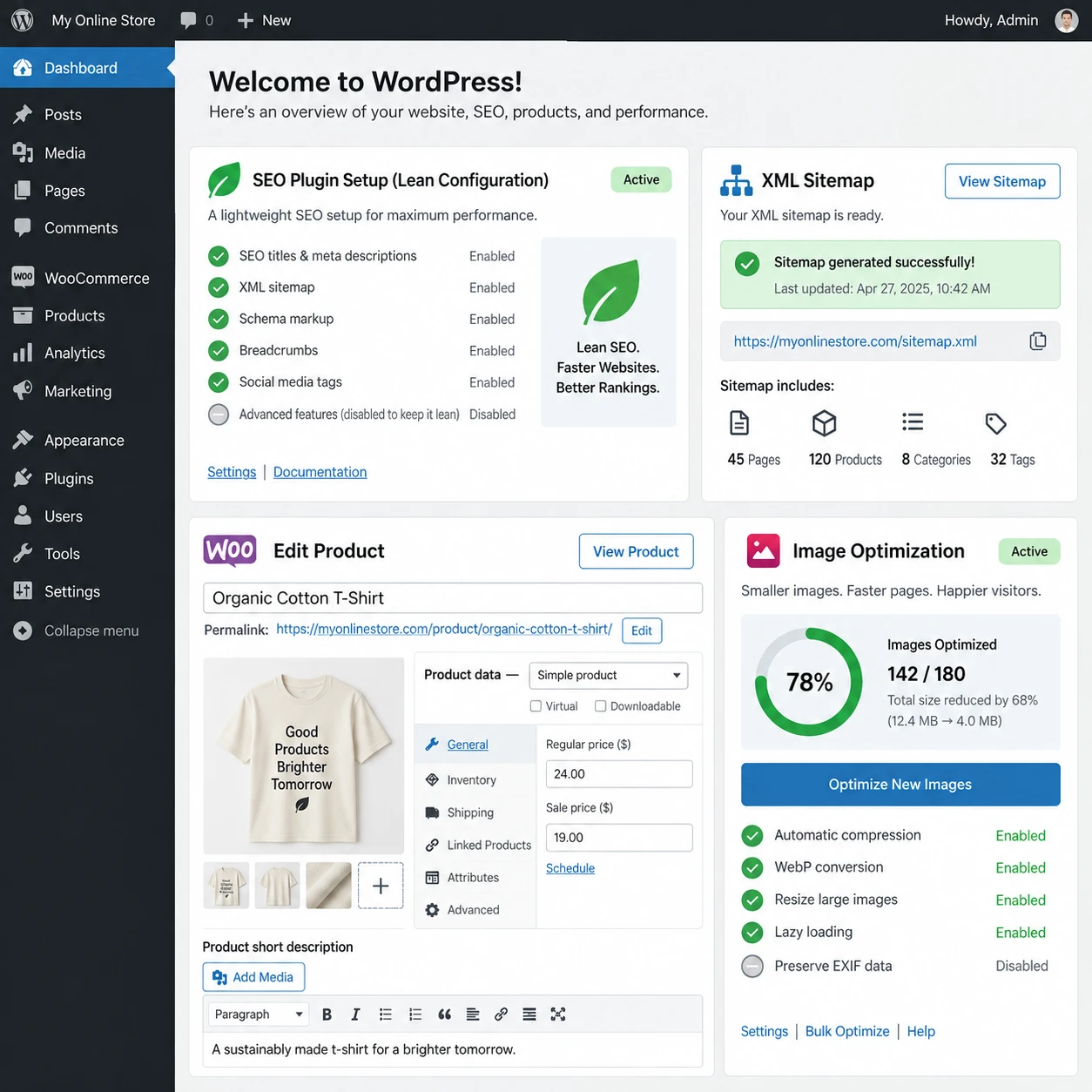
Choosing a WordPress SEO plugin can make important technical and on-page tasks easier, but no single tool can guarantee search visibility. The right setup helps you manage titles, XML sitemaps, schema markup, images, and page speed while leaving room for the work that matters most: useful content and a site that serves visitors well.
For 2024, think in terms of jobs rather than collecting plugin names. Start with an SEO plugin for core controls, then add a specialist tool only when your site has a clear need that your existing setup does not meet.
What WordPress SEO plugins can—and can’t—do
WordPress SEO plugins help you manage search-related settings, such as page titles, meta descriptions, XML sitemaps, and some schema markup. They support an SEO strategy, but they cannot make thin content useful, earn trusted links, or guarantee search engine rankings.
A core plugin can give editors fields for on-page SEO, let you set canonical URLs, and control whether certain pages should be indexed. It may also generate an XML sitemap, which helps search engines discover URLs. These features are useful, especially on a growing site where manual checks become difficult.
But a plugin’s presence does not mean search engines will index every page or rank it well. Indexing depends on factors beyond the plugin, including crawl access, page quality, site architecture, and search engine decisions. Google’s guidance on Search Central is a useful reference for understanding how crawling, indexing, and structured data work.
Use plugins to reduce technical friction and maintain consistent settings. Treat them as tools within a broader process that includes research, helpful writing, internal links, accessibility, and regular performance checks.
What to look for in an SEO plugin
Choose a WordPress SEO plugin that covers your actual needs, works with your theme and other tools, and remains understandable to the people who manage the site. A long feature list matters less than reliable controls and clear documentation.
Before installing, check whether the plugin supports the features you need: title and meta description editing, XML sitemap generation, canonical tags, indexing controls, and relevant schema markup. For a small blog, straightforward defaults may be enough. A publisher with many content types may need more control over templates and archives.
- Usability: Editors should be able to understand warnings and set page metadata without guessing.
- Compatibility: Confirm that the plugin supports your WordPress version, theme, page builder, and commerce tools.
- Support and maintenance: Review update history, documentation, and support options before relying on it for core site settings.
- Performance and scope: Avoid adding features you will not use, especially when another installed plugin already handles the same task.
SEO plugin compatibility deserves special attention. Two plugins can output duplicate schema, competing canonical tags, or separate sitemaps. A feature that looks helpful in isolation can create confusing output when layered onto an existing stack.
Essential plugin categories for WordPress SEO
Most WordPress SEO setups use a core plugin for on-page controls and indexing, then add image or performance tools only when needed. Keep each plugin responsible for a distinct job to reduce conflicts and maintenance.
On-page SEO, sitemaps, and schema
A general SEO plugin usually handles titles, meta descriptions, canonical URLs, robots directives, and an XML sitemap. It may also offer schema markup for common page types. Check the generated output rather than assuming every setting is correct: a sitemap should list useful canonical URLs, not private pages or low-value archives.
Schema markup describes page content in a structured format, such as an article or product. It can help search engines interpret information, but valid markup does not guarantee a rich result. Use the schema type that matches what visitors can see on the page.
Image optimization and page speed
Image optimization plugins can compress files, create responsive formats, or manage lazy loading. They are most useful when image weight is a real bottleneck. Keep original files where appropriate, check visual quality after compression, and avoid enabling duplicate lazy-loading features in multiple tools.
Page speed tools may cache pages, optimize code delivery, or connect a site to a content delivery network. Their settings depend on the host, theme, and other plugins, so test important pages after changes. Speed is one part of the user experience; aggressive settings that break a checkout or menu are a poor trade.
Choosing plugins for a WooCommerce store
WooCommerce SEO needs to make product pages easy to discover and useful to shoppers, while keeping product structured data accurate. Choose tools that work with WooCommerce’s product fields and avoid duplicating schema or metadata already generated by your theme or other extensions.
Start with the pages customers use to make decisions. Product titles should describe the item clearly; descriptions should answer practical questions about features, sizing, materials, shipping, or compatibility. Add unique copy where possible instead of reusing a manufacturer’s description across many products.
For product structured data, check that visible details such as price, availability, and product name match the markup. Variations, sale prices, and out-of-stock items can make this more complicated. A plugin can generate product schema, but it cannot correct inaccurate store data or replace clear product information.
Also review category pages, filters, and search results. Faceted navigation can create many URL variations, some of which may be unnecessary for search engine indexing. Decide which pages offer standalone value and control crawling or indexing for the rest with care. Test product pages on mobile and through checkout after plugin changes; store functionality takes priority over an SEO score.
How to choose and configure your plugin stack
To build a lean plugin stack, list the SEO tasks your site needs, assign one tool to each task, and test the resulting pages and technical output. This approach keeps settings easier to troubleshoot as the site changes.
- Audit what is already active. Check your theme, host, and installed plugins for title controls, schema, sitemaps, caching, and image compression.
- Choose one core SEO plugin. Configure titles, canonical URLs, indexing rules, and sitemap settings before adding specialist tools.
- Add only proven gaps. Install an image or performance plugin if testing identifies a need and your current setup does not cover it.
- Review representative URLs. Check a post, category, key landing page, and—if relevant—a WooCommerce product page for metadata, schema, and indexability.
- Monitor after changes. Use Google Search Console to review indexing reports, sitemap status, and search performance. Recheck after major theme or plugin updates.
This job-based method is more useful than choosing a target number of plugins. A simple brochure site may need only one SEO plugin, while a busy store could require separate image and caching tools. More plugins mean more updates and compatibility checks, so each addition should solve a specific problem.
Common WordPress SEO plugin mistakes
The most common WordPress SEO plugin mistakes are overlapping features, unchecked defaults, and treating automated scores as proof of SEO quality. Avoiding these errors makes the setup safer and the advice more useful.
- Installing overlapping tools: Site owners often add a second SEO plugin to access one feature. This can generate duplicate sitemaps, schema, or metadata. Choose one plugin to own each function, then disable the duplicate feature elsewhere.
- Leaving default settings unchecked: A plugin may include archives, tags, or product filters in settings that do not fit your site. Review indexability and sitemap contents instead of assuming the default is right.
- Chasing plugin scores: A green indicator can help flag missing metadata, but it cannot judge search intent, originality, expertise, or whether a page answers a customer’s question. Use scores as prompts, not guarantees.
- Expecting a plugin to create rankings: Plugins support technical and on-page work; they do not replace content quality, site architecture, or reputation. If visibility is weak, investigate the page and the search results before installing another tool.
A practical final check is to inspect the source or use a testing tool to confirm that the page has one clear title, sensible canonical information, accurate schema where relevant, and a working sitemap path. Then review Search Console over time. A plugin is working when it reliably implements the settings you intend, not simply because its dashboard reports a high score.